LOKTV MacBook Guide: How to Watch LOKTV or Loklok on Mac
A practical MacBook guide for users searching Loklok MacBook, LOKTV on Mac, or Loklok for Mac. Learn what is realistic, what to avoid, and how to test an Android emulator setup without exposing your main Mac account.
Quick answer: you usually cannot treat a random “Loklok MacBook download” or “LOKTV for Mac” result as a confirmed native macOS app. Most users are really looking for a way to watch the Android streaming experience on a MacBook screen, so the safer path is to verify whether a trusted web option exists, then consider a reputable Android emulator only if you understand the APK, account, and macOS security risks.
This page does not replace the LOKTV APK download page, the Windows PC guide, or the iPhone guide. It owns a narrower intent: MacBook, macOS, Apple silicon vs Intel checks, Android emulator setup, subtitles, keyboard controls, and warning signs around unofficial Mac installers.
Guide Contents
Can You Install LOKTV or Loklok on MacBook?
The safe answer is: do not assume every MacBook download page is official or safe. Search results can mix Android APK mirrors, emulator tutorials, fake DMG files, browser pages, and pages that reuse the Loklok or LOKTV name. A native Mac app should clearly show its publisher, version history, release channel, uninstall method, privacy policy, and whether it is signed or notarized for macOS.
For many MacBook users, the realistic route is an Android app running inside an emulator. That can be useful when you want a larger screen, laptop speakers, keyboard search, and a stable home connection. The tradeoff is important: you must trust the emulator, the APK source, and the way the emulator shares clipboard, storage, network, and account sessions with macOS.
If your goal is simply to install the Android APK on a phone, use the homepage. If your goal is Windows, use the PC guide. If you are checking whether an APK can run on iPhone, use the iOS guide. This article stays focused on MacBook and Mac safety.
Best answer first
Use LOKTV or Loklok on Mac only through a source and emulator you trust. Avoid Mac DMG or PKG installers that hide the publisher, update path, file history, or permission behavior.
LOKTV MacBook Setup Options Compared
“LOKTV MacBook,” “Loklok for Mac,” and “install Loklok MacBook” do not always mean the same thing. Some users want a native macOS app, some want a browser player, and others only need a way to run the Android APK on a laptop. Separate the option before downloading anything.
The table below is the safest way to choose. It keeps the page separate from the general APK download intent and from the Windows guide, while still helping users who want a practical Mac viewing setup.

| Option | When it helps | Main risk | What to verify |
|---|---|---|---|
| Android emulator + APK | Useful when no trusted native Mac app is documented. | You must trust both the emulator and APK source. | Official emulator site, Apple silicon support, APK version, package name, permissions, and update date. |
| Native macOS DMG or PKG claim | Only reasonable when the publisher and release channel are clear. | Fake installers, unsigned apps, bundled offers, or background agents. | Developer identity, notarization, release notes, uninstall path, and macOS security prompts. |
| Official browser player | Best when a verified web option exists in your region. | Phishing pages can copy app names and login screens. | HTTPS domain, account flow, ownership, and whether playback actually works. |
| Phone or tablet casting | Low Mac install risk when the mobile app already works. | Subtitle, audio, and quality can vary by network. | Same Wi-Fi, screen lock behavior, privacy on shared networks, and audio output. |
Safe Emulator Installation Workflow for Mac
Use these steps only after you have decided that an emulator is the right path. Android Studio includes an official Android Emulator for testing Android apps, while consumer emulators may be easier for entertainment use. In either case, download only from the official project site and check whether your Mac is Apple silicon or Intel before installing.
Do not use your primary account on the first test. First confirm the app opens, search works, video playback starts, subtitles are readable, and permissions make sense. If those basics fail, remove the app and emulator profile instead of trying multiple random APK files.
Step-by-step workflow
- Check whether your MacBook uses Apple silicon or Intel, then choose an emulator that explicitly supports your chip and macOS version.
- Download the emulator from the official site, not from a mirror, repackaged archive, or forced download page.
- Install the emulator, update its Android runtime, and create a clean test profile before installing any APK.
- Download the LOKTV or Loklok APK only from a page that lists version, file size, update date, Android requirement, and source details.
- Install the APK in the emulator and test search, playback, subtitle language, full-screen mode, and keyboard input.
- If the app requests contacts, SMS, accessibility, device admin, or unrelated permissions, stop and uninstall it.
Official references worth checking
For emulator behavior, compare your setup with Android Developers emulator documentation. For macOS security warnings, read Apple guidance on opening apps from unknown developers before overriding Privacy & Security settings.
- Avoid emulators or installers that require disabling macOS security features broadly.
- Prefer a clean emulator profile for testing instead of mixing APK tests with personal Android accounts.
- Keep the emulator updated and remove old APK test files from shared folders.
Apple Silicon, Intel Mac, and Performance Checks
MacBook compatibility depends on the emulator more than on LOKTV itself. Apple silicon Macs and Intel Macs can have different virtualization support, graphics behavior, and app compatibility. A guide that only says “download for Mac” without mentioning chip support is not specific enough to trust.
Before installing, confirm your macOS version, free storage, available memory, and whether virtualization or hypervisor support is required. Streaming apps may open on a low-spec emulator but still fail during HD playback, subtitle rendering, or full-screen mode.
| Check | Why it matters | Safer action |
|---|---|---|
| Apple silicon or Intel | Some emulators support one chip family better than the other. | Choose the build that explicitly lists your Mac type. |
| macOS version | Older versions may block current emulator releases. | Update macOS security patches before testing. |
| Storage and RAM | Emulators need space for Android images, cache, and video data. | Keep several GB free and close heavy apps before playback tests. |
| Graphics mode | Black screens or stutter often come from rendering settings. | Switch emulator graphics mode and lower resolution before changing APK source. |
Playback, Subtitles, and Offline Viewing on MacBook
A MacBook setup is only useful if the actual viewing experience works. Test one short title first: search, open the player, change subtitles, enter full screen, pause, resume, and reconnect Wi-Fi. Do this before signing in with a main account or downloading a large movie cache.
Offline download behavior can be different inside an emulator. A file may be stored inside the emulator profile rather than in the normal macOS Downloads folder. If you rely on offline viewing for travel, read the LOKTV offline download guide and perform an airplane-mode test inside the emulator before assuming files will play without internet.
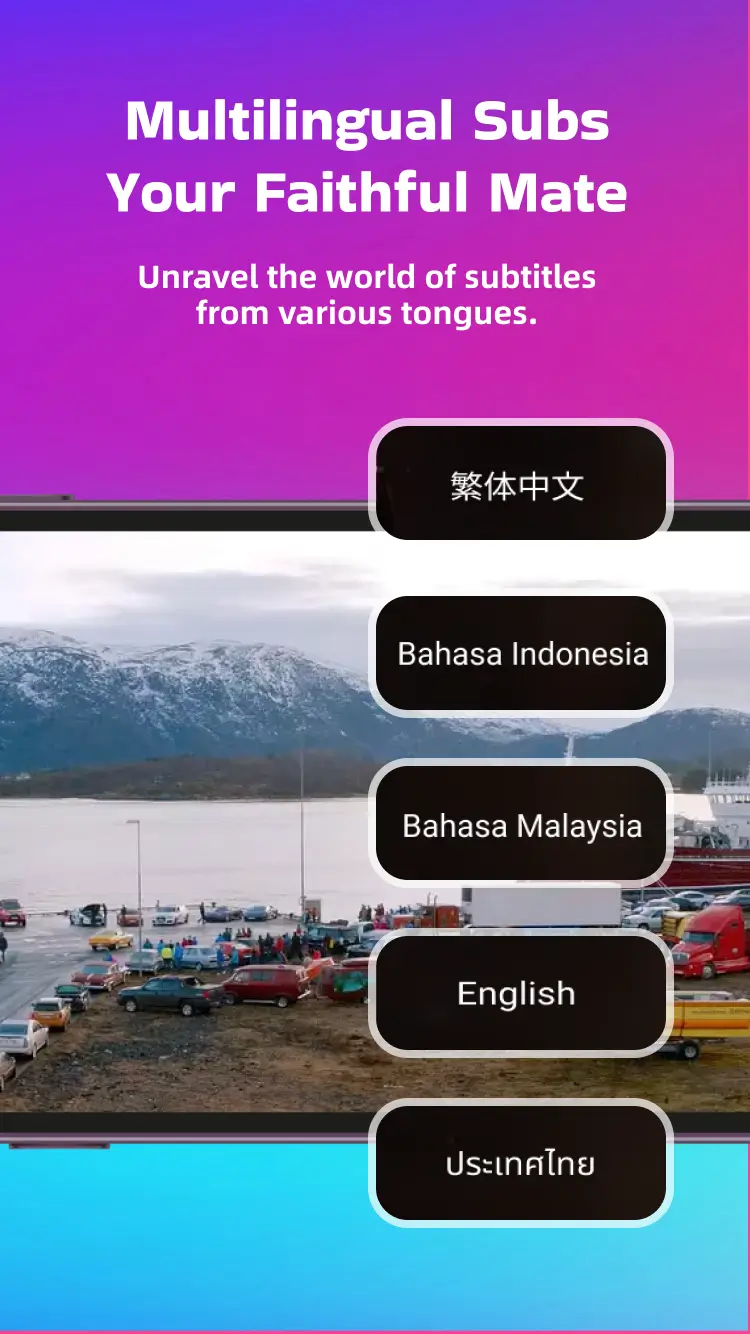
Playback test
Do one short video test before storing account details: player controls, subtitle language, full-screen mode, audio delay, and offline behavior.
Mac Safety Checks Before Installing Any LOKTV or Loklok File
Mac security prompts matter. Apple warns that overriding security settings for unknown developers is a common malware risk, so do not click through a Gatekeeper warning just because an installer uses a familiar app name. A streaming app is not worth granting broad permissions to an unknown package.
Be especially careful with pages that promise “Loklok Mac premium unlocked,” “LOKTV no ads for Mac,” or “VIP MacBook version.” Those phrases often overlap with mod APK risk. If a file is modified, use the LOKTV Mod APK safety checklist before installing it anywhere.
Minimum checklist
Verify source URL, developer identity, file type, version, file size, permissions, update path, uninstall method, and macOS warning text before installing.
| Warning sign | Why it matters | What to do |
|---|---|---|
| Unknown DMG or PKG | macOS installers can add background agents or persistent files. | Check developer identity and uninstall path; avoid if hidden. |
| Password-protected ZIP | It can hide content from basic scanning and user review. | Do not use it for streaming app installs. |
| Permission requests beyond playback | Contacts, SMS, accessibility, or device control are not normal for basic viewing. | Remove the APK or installer. |
| No version or file size | You cannot compare updates or detect repackaged files. | Use a source with visible release details. |
Troubleshooting LOKTV or Loklok on MacBook
If installation fails, do not immediately download another APK. First check whether the emulator supports your Mac chip, whether the Android version matches the app requirement, and whether macOS blocked a required component. Many MacBook problems are emulator configuration issues rather than LOKTV problems.
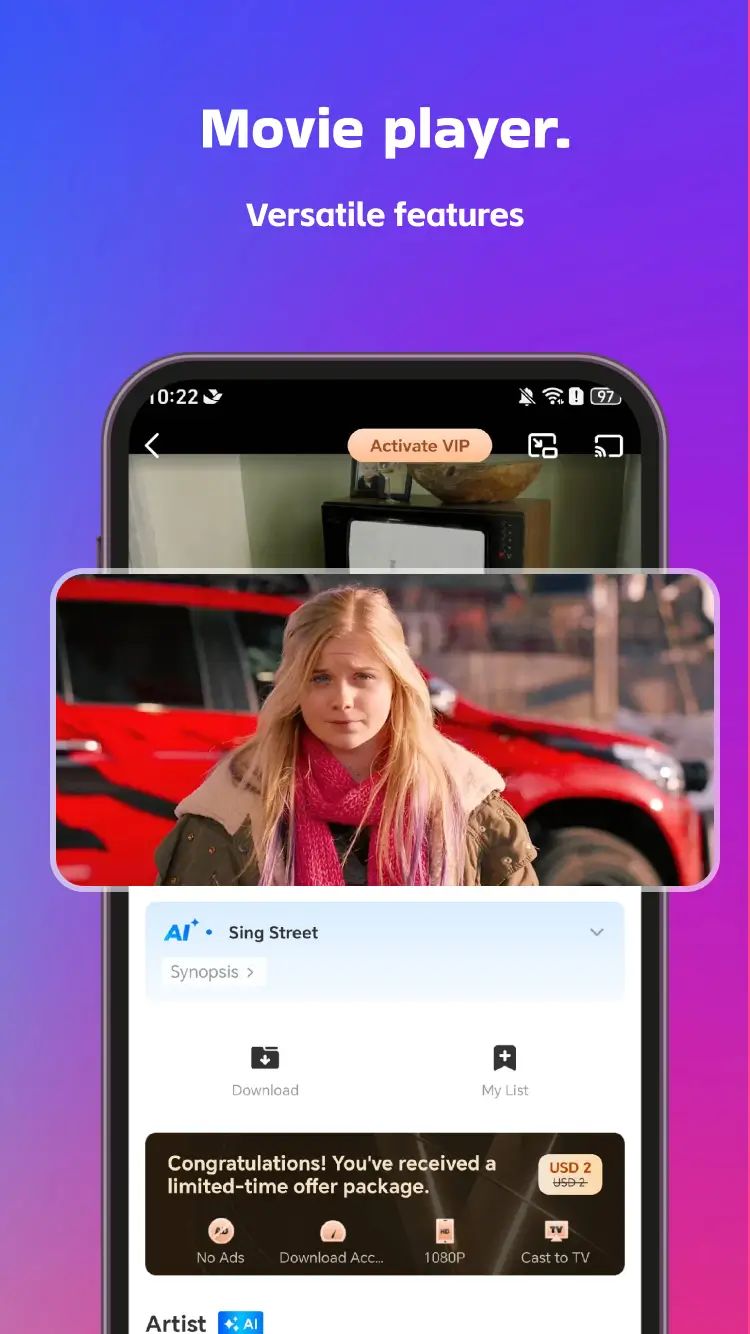
If video opens but stays black, switch emulator graphics mode, lower resolution, restart the emulator, and test a different title. If subtitles are too small, adjust both app subtitle settings and emulator display scaling. If search input behaves oddly, use plain text paste and disable keyboard mapping shortcuts that conflict with macOS shortcuts.
| Problem | Likely cause | Fix |
|---|---|---|
| APK will not install | Android version mismatch or damaged file | Check emulator Android version, source details, and file size. |
| Black screen during playback | Graphics rendering conflict | Change emulator graphics mode and reduce resolution. |
| Subtitles missing or tiny | Language track or display scaling issue | Select subtitles before playback and adjust emulator scaling. |
| Mac becomes slow | Emulator memory or CPU pressure | Close other apps, lower resolution, and use one emulator instance. |
FAQ About LOKTV and Loklok on MacBook
Related Setup Guides
- LOKTV APK download - Use this for the standard Android APK download intent.
- Loklok Windows PC guide - Use this if your laptop is Windows instead of macOS.
- LOKTV iPhone guide - Use this for iOS and iPhone APK compatibility questions.
- LOKTV offline download guide - Use this before relying on saved movies or subtitles.
Summary: Use MacBook Setup Cautiously
LOKTV or Loklok on MacBook is possible only when you use a realistic path: a trusted browser option, phone casting, or a compatible Android emulator with a verified APK. The risky path is downloading a random Mac installer that hides publisher, permissions, update history, or uninstall behavior.
For most users, the best first step is to test the app on Android, then decide whether MacBook viewing adds enough convenience to justify an emulator. Keep the Mac setup clean, avoid mod claims, and test playback, subtitles, and offline behavior before signing in with a main account.