How to Disable Ads on LOKTV Without Buying APK
Identify whether an interruption comes from the app, browser, or Android notifications, then try reversible settings and understand their limits.
Short answer: first identify where the interruption appears. An ad inside the player may be controlled by the service; a browser pop-up or Android notification usually has its own site or app permission. There is no universal setting that guarantees every LOKTV ad will disappear.
If you are searching for how to disable ads on LOKTV without buying an APK, use the least risky setting that matches the source. A private DNS or filter may block some requests but can also affect sign-in, playback, or subtitles. A no-ads Mod APK is a separate, unverified package claim, not a reliable setting.
This guide answers an ad-troubleshooting question without promising that every LOKTV ad can be removed. App settings, browser controls, privacy settings, and a modified APK are different things.
Guide contents
Can You Remove LOKTV Ads Without an APK?
Sometimes an interruption can be reduced, but the right fix depends on its location. Ads inside the player may be part of the service and may have no user-facing off switch. Browser tabs, redirects, and notifications are controlled by browser or Android permissions instead.
Start with diagnosis, then make one reversible change. If an in-app advert continues after you check the visible settings, do not keep changing unrelated device controls or install another package. The app may simply provide no supported ad-free option for that content.
Set expectations
A setting can reduce a specific interruption; it cannot promise that all in-app ads will stop.
Identify Where the Ad Appears
Watch what happens immediately before the interruption. Note whether it stays inside the player, opens a new browser tab, arrives as a notification, or appears over the home screen. This distinction matters: changing browser permissions will not remove an ad delivered inside the app.
Close a suspicious tab without tapping its download button. Record the hostname and the app or notification that opened it. Do not share a screenshot that contains account details, payment information, or a verification code.
| Where it appears | Likely source | First check |
|---|---|---|
| Inside a player or catalog | App or service | Visible app settings or supported plan |
| New browser tab or pop-up | Website, redirect, or extension | Close it and review site permissions |
| Android notification | A site or app notification grant | Long-press and identify the sender |
| Home-screen overlay | Overlay permission or another app | Review recent apps and special access |
Try Reversible Settings First
Open LOKTV's own settings and look only for controls that are visible in your build, such as notifications, autoplay, personalization, or playback. Change one item at a time and note its original value. A menu shown in another version or region does not prove that the same control exists on your device.
For browser interruptions, use the browser's site-permission controls. Chrome's guidance on unwanted ads and pop-ups explains where to review that behavior. A private DNS or content filter is optional and not a LOKTV ad switch; undo the change if login, playback, or subtitles stop working.
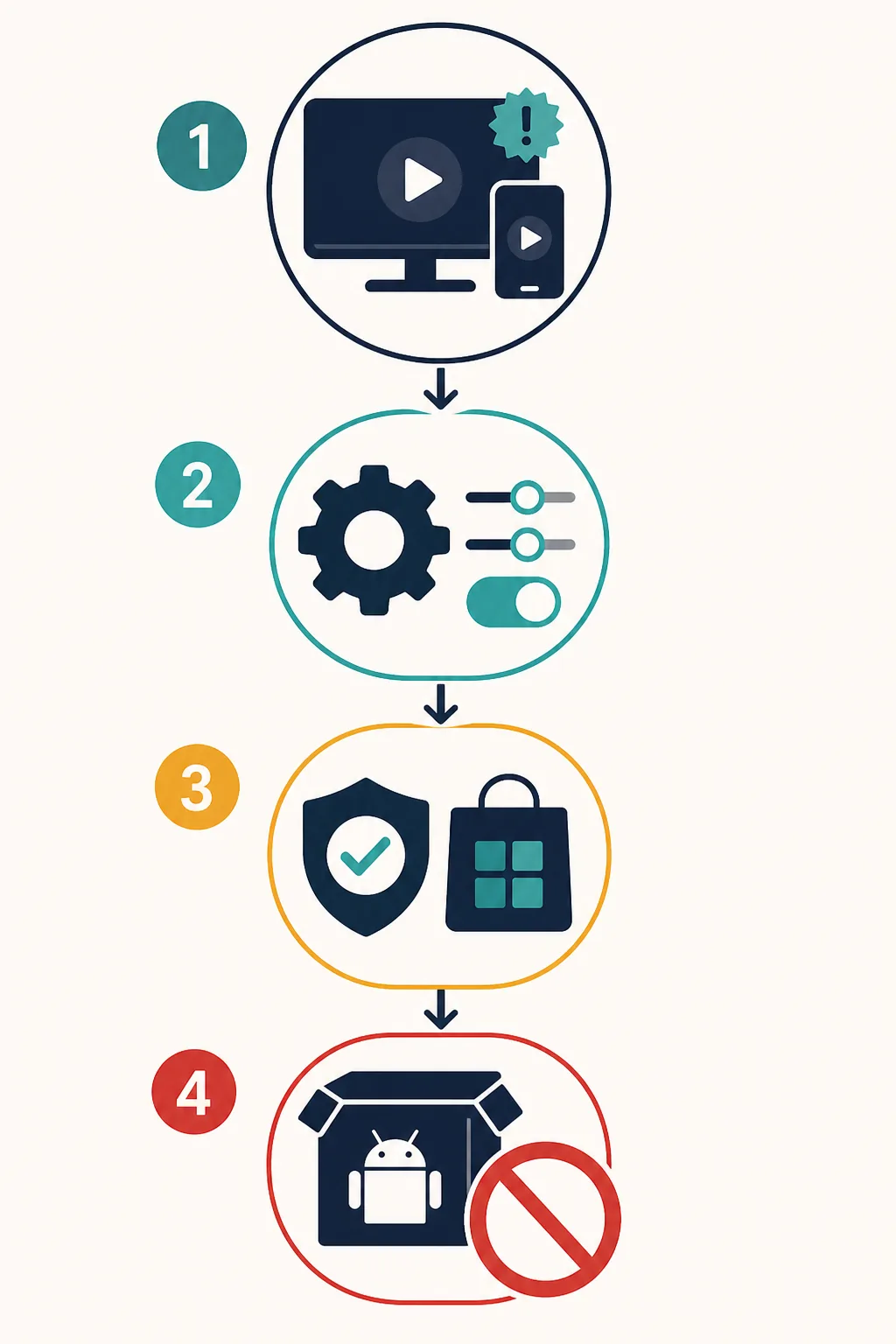
A low-risk order to try
- Close the interruption and note whether it came from the app, browser, notification, or redirect.
- Remove notification permission for the site or app that sent it; review that browser's pop-up controls.
- Check only the settings visible inside LOKTV and change one option at a time.
- If testing a DNS or filter, confirm login, playback, subtitles, and downloads, then restore the original setting if anything breaks.
Use a First-Party Route to Identify the App
If you need to check which app you installed, open the LOKTV website or the store page reached from it. Compare the publisher and app identity shown by that route before changing account or update settings.
Availability can vary by device and region. A first-party page is a useful starting point, not proof that an unrelated mirror is authorized. If no official page supplies a stable file, do not guess a direct APK URL or trust a mirror's date as evidence.
| Check | Look for | Limit |
|---|---|---|
| Product route | Expected official host | A lookalike host is not equivalent |
| Store page | Publisher and app identity | Details may vary by region |
| APK claim | Source and update history | A no-ads label does not verify a package |
Why No-Ads Mod APK Claims Need Caution
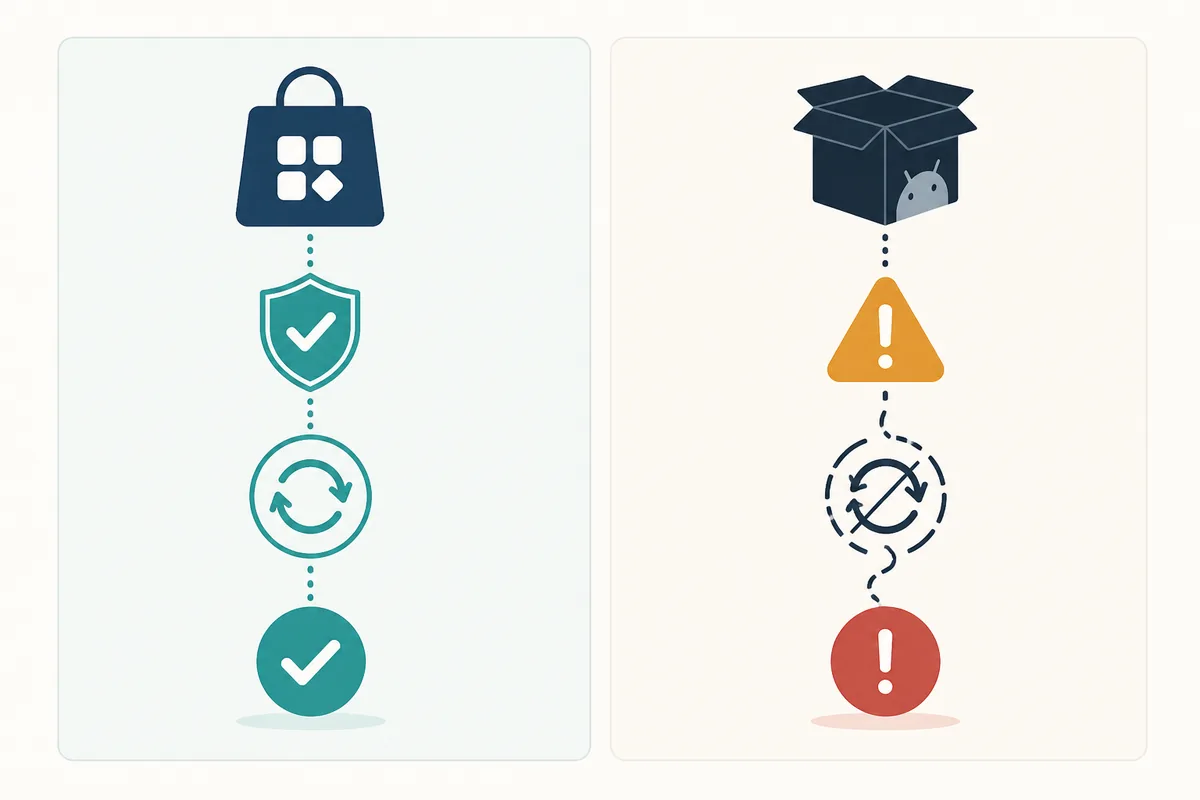
A modified APK can use a different signing key, change app behavior, or add code that is not visible on the download page. It may also break the normal update path or expose account sessions and permissions. The comparison image is conceptual, not a screenshot of a real package.
If a page promises VIP, premium unlocked, or no ads, verify its publisher, package, permissions, update path, and uninstall steps before doing anything. The LOKTV safety guide and package name guide cover those checks. Never enter your main password or payment details in an unverified build.
Stop signs before installation
- The page promises VIP or no ads but identifies no publisher or release history.
- The download button crosses several unrelated domains or hides the file behind a countdown.
- The installer requests unrelated permissions or asks you to disable Android security controls.
- The package identity differs from the app you meant to install.
What to Do If Ads Continue
If an ad stays inside the player after you review visible settings, treat it as a service limitation unless the official app provides another control. Test one ordinary title and note whether the interruption appears before playback or during navigation. Avoid clearing all app data if you still need the account or offline files.
For a browser redirect, close the tab, remove the site's notification permission, update the browser, and review the host before visiting it again. If ads appear on the Android home screen, check recent installs and overlay access. A new APK is not a reliable fix for either problem.
If you cannot identify the source, stop using the suspicious package, review its permissions, and change any password entered there. Return to a verified store or product route. Use the related login, package, or TV guide for those separate questions.
When to stop
Do not trade a visible interruption for an unknown installer, disabled security controls, or unrelated permissions.
| Symptom | Try first | Next step |
|---|---|---|
| Browser pop-up | Remove site permission | Review the host and browser settings |
| In-app ad | Check visible app controls | Accept the service limit if no supported option exists |
| Unknown APK | Stop using it | Uninstall and review exposed credentials |
| Home-screen overlay | Review recent apps | Remove the app that owns the permission |
LOKTV ads FAQ
Related LOKTV guides
- LOKTV Mod APK safety guide — Use it for no-ads, VIP, premium-unlocked, mirror, signature, and permission risks.
- Is LOKTV safe? — Review source, data safety, permissions, account, and payment checks.
- LOKTV package name guide — Compare package identity when a store page and an APK mirror disagree.
- LOKTV website guide — Return to the verified product route when a browser redirect creates confusion.
- LOKTV APK download page — Use the standard store reference and device-specific download checks.
Bottom Line: Diagnose the Ad Before Changing the App
To disable LOKTV ads without buying an APK, identify the surface first and try only reversible browser or Android settings. An in-app ad may remain if the service offers no supported control.
When a proposed fix requires an unknown installer, disabled protections, or unrelated permissions, stop and use the verified product route instead.