LOKTV APK for Android: Install, Verify, and Troubleshoot Safely
Use the right Android route, compare app identity before installation, and know when a download page should be closed instead of installed.
Quick answer: to install LOKTV APK for Android, start with the official mobile route or a reachable Google Play listing. Confirm that the app name, package identity, developer, update context, requested permissions, and Android compatibility describe the same app. If a page supplies only a colorful download button, a countdown, or a claim such as VIP unlocked, it has not proved that the file is safe.
This guide covers Android phones and tablets. It explains store installs, manual APK checks, and recovery steps when the file will not install. Android TV, Fire TV, TV boxes, and Samsung Tizen have different controls, so use the Smart TV guide for those devices.
LOKTV APK for Android is an installation and source-check question, not a promise that every APK mirror is current. Verify the device, package, developer, permissions, and file type before installing.
LOKTV Android APK Guide Contents
What the LOKTV APK for Android Route Involves
LOKTV APK for Android can mean two different tasks. A store install is handled by Google Play or another recognized store, which manages the package, signing information, updates, and device compatibility. A sideloaded APK is a file you obtain outside that store. Android may ask you to allow the browser or file manager to install unknown apps, and you must then judge the file source and identity yourself.
A page can use the word APK while delivering HTML, a redirect, an ad bundle, or a modified build. A filename such as loktv-latest.apk does not show who published it, and a successful installation does not prove that the app was genuine.
The practical rule
Choose a known source first, then compare the package and permissions. Never use a successful install as the only proof that the file was genuine.
Prepare an Android Phone or Tablet
Before downloading, record the Android version, device model, free storage, and intended app route. Keep room for the installer and use a stable connection.
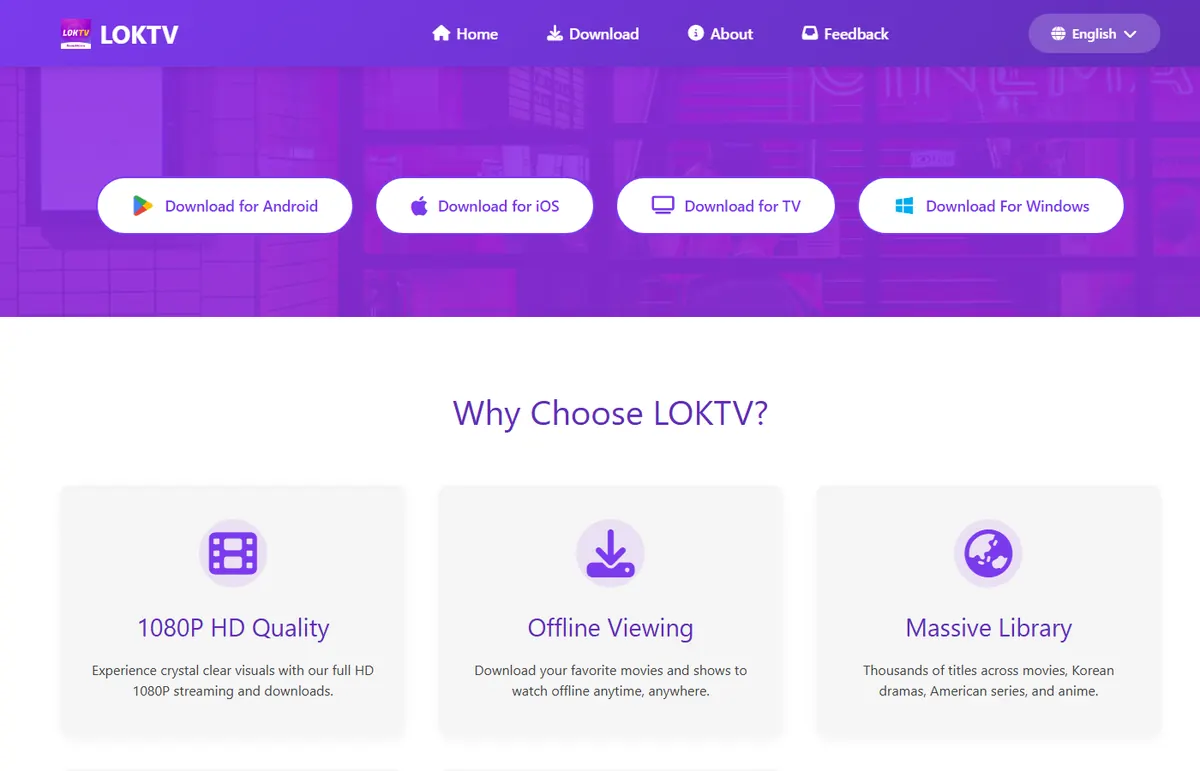
A five-minute preparation checklist
- Confirm that the device is an Android phone or tablet, not a Samsung Tizen TV or iPhone.
- Record the Android version, free storage, installed app identity, and the source domain.
- Open the official mobile or store route directly and avoid pages that force several redirects.
- Keep Play Protect or the device security scanner enabled while checking the file.
- Download only after the package, developer, permissions, and platform match the same app.
Install LOKTV on Android from a Store or APK
A store installation is the simpler path: compare the developer, app identity, data-safety details, and permissions, then use Install or Update. Store availability varies by country, so an unavailable listing is not a reason to trust a random APK.
For a sideload, save the APK where you can inspect it. Android grants unknown-app permission per browser or file manager; enable it only for this checked file and turn it off afterward. Stop when Android warns that the app is harmful or unrecognized. The LOKTV safety guide covers broader privacy questions.
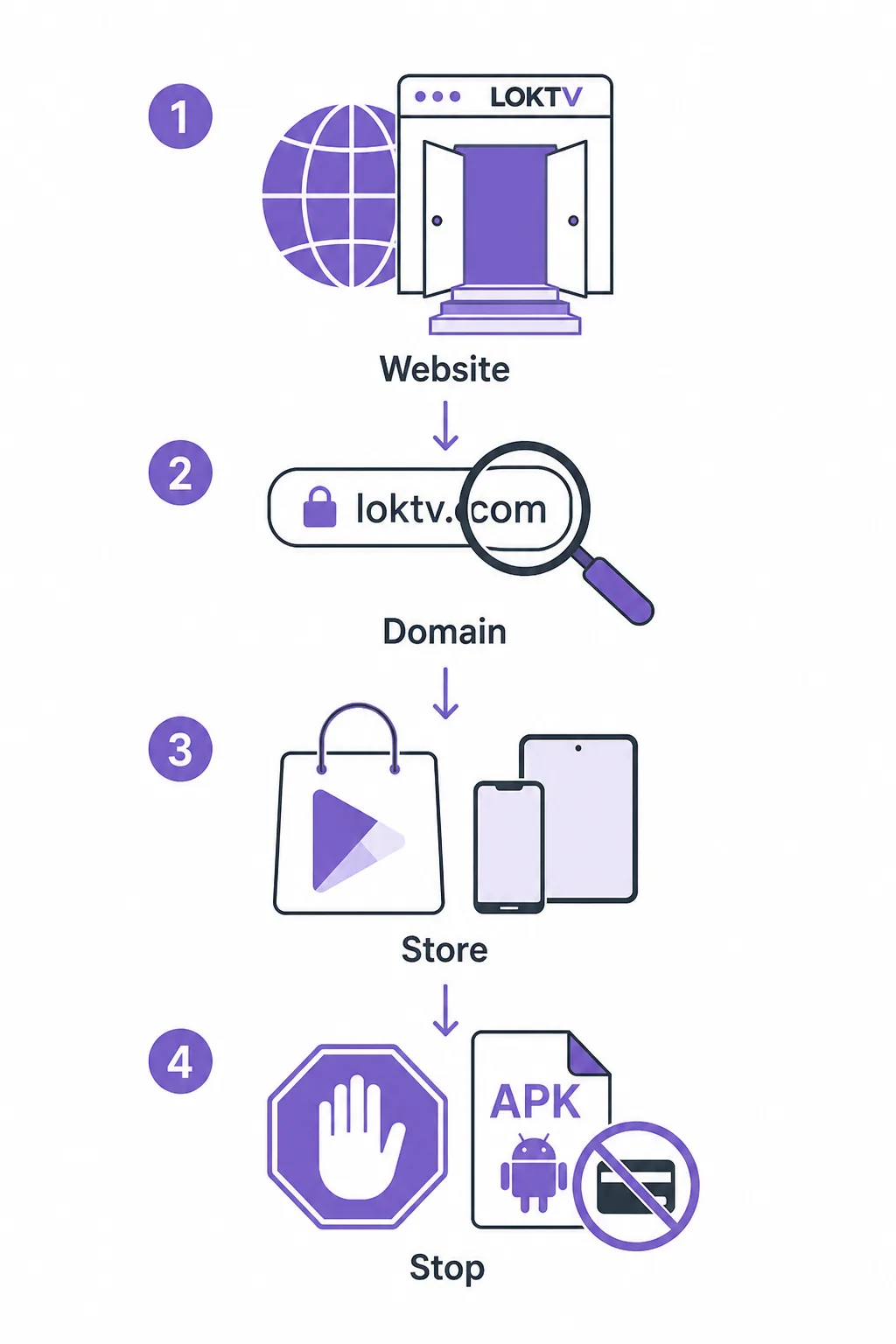
Store install versus sideload
The store route usually handles updates and signing for you. A sideload requires you to retain the source page, file name, package identity, and permission decision so you can explain what changed later. Do not rename an HTML download to .apk, and do not install two similarly named packages simply to compare them. If you need an older build, use the separate old-version guide and keep the historical intent separate from a current Android installation.
Verify the Package, Permissions, and Source
The package name is a useful identity anchor because titles and icons are easy to copy. Existing LOKTV checks have referenced com.luma.zeqorix; recheck it against the current official or store listing. Use the package-name guide for a missing or conflicting value.
Compare the developer, update date, permissions, and file type. Network and storage can fit streaming, while unrelated SMS, contacts, accessibility, or device-admin access needs explanation. HTML, countdowns, unknown ZIP payloads, and temporary redirects are not verifiable APKs.
Android can reject an update when the new file has a different signature, or ask you to uninstall the existing app. Uninstalling can remove local data and does not make an unknown source trustworthy, so preserve the existing installation until the replacement has a traceable origin.
Do not overread a version number
A precise version and file size on a third-party page are still unverified when the developer, package, signature, or source cannot be checked.
| Check | What to compare | Warning sign |
|---|---|---|
| Platform | Android phone or tablet route, device compatibility, screen orientation | The page only describes TV, Windows, or iOS |
| Package | Visible package identity and the matching developer | The package is missing, shortened, or changes between pages |
| Permissions | Network, storage, and other access explained by the feature | SMS, contacts, accessibility, or device admin without a clear reason |
| File response | Store install or a verifiable APK with stable source metadata | HTML, countdown, ad bundle, ZIP, or unexplained redirect |
| Update path | Same package and signing context as the installed app | Android asks to replace an app with a different signature |
Fix Installation, Login, and Playback Problems
If Android says App not installed, check storage, Android compatibility, incomplete downloads, and an existing package with a different signature. Do not grab another mirror. Delete the partial file, confirm that the response is really an APK, and keep the original app until a replacement is documented.
If the app installs but closes or cannot play, separate device, network, account, and source problems. Test another network, confirm date and time, review permissions, and compare one known title.
A clean recovery sequence
- Stop the install and save the source URL, file name, package, and Android warning.
- Delete the partial or suspicious file and run the device security scan.
- Check storage, Android compatibility, date and time, and the installed package identity.
- Retry only from the verified store or first-party route, with the browser install permission limited to that attempt.
- After a successful launch, test playback, subtitles, sign-in, and downloads before relying on the app.
When to Stop and Choose Another Route
Close the page when it promises VIP, no ads, or premium access without naming a publisher and package. Those phrases commonly describe a modified APK, which is a different intent from installing the standard Android app. Use the Mod APK safety guide for that risk discussion instead of treating an unlocked build as an update.
Stop when the download target is an HTML document disguised as an APK, a temporary link with no source context, a file that requests unrelated permissions, or a page that keeps opening new tabs. Changing the extension or disabling Play Protect does not resolve the source problem.
If the official mobile page or store listing is unavailable, wait. A missing route is more honest than a guessed direct file URL. Keep the Android installation question separate from the update guide, which covers release freshness and package comparison.
A delayed install is a valid outcome
When you cannot answer what the file is, who published it, which device it targets, and which permissions it needs, do not install it just to complete the download.
LOKTV APK for Android FAQs
Related LOKTV Guides
- LOKTV package name and identity checks — Use it when a store or APK page shows a missing or conflicting package.
- LOKTV Website Guide — Separate the official source route from copied domains and redirect pages.
- LOKTV APK latest version and update guide — Use it for release dates, update claims, and package comparison.
- LOKTV Smart TV and Android TV guide — Switch here for TV boxes, Firestick, and remote-control compatibility.
- Is LOKTV safe? — Review broader privacy, permission, and data-safety questions.
Bottom Line
LOKTV APK for Android is safest to approach as an identity check followed by an installation, not as a race to find the newest-looking file. Begin with the official mobile or store route, match the developer and package, review permissions, and keep the device type within the page's Android phone and tablet boundary.
If the source cannot prove what the file is or the Play route is unavailable, wait rather than inventing a direct APK link. Keep TV, Windows, iOS, Mod APK, website, and update questions on their dedicated guides so each route remains clear and easier to verify.