LOKTV APK Latest Version: How to Update Safely
Check the official route first, compare the package and update date, then choose the Android, TV, or Windows method that matches your device.
Quick answer: to check the LOKTV APK latest version, start with the official TV download page or the current Google Play listing. Match the app name, package name, developer, update date, permissions, and device route before installing anything.
The search phrase LOKTV update can describe a normal store update, an Android TV update, a Windows setup change, or a third-party APK labelled latest. These are not the same thing. This guide keeps standard update checks separate from the existing package-name guide, Mod APK safety guide, and device-specific installation guides.
Freshness note checked September 13, 2026: the current search result surfaced com.luma.zeqorix for the LOKTV Android listing, while com.fornax.vortex is a separate TV-style identity. Availability and release details can change by country, so use the reachable first-party or store route at the time you update.
LOKTV APK latest version claims can differ by platform. Check the official or store route, package, developer, date, and permissions before installing.
LOKTV Update Guide Contents
What Counts as a Real LOKTV Update?
A real update is a release delivered through a source that can be identified and checked. Start with the official LOKTV page or a currently reachable store listing, then compare package context, developer, update date, permissions, and data-safety information. A store page may not show one universal APK version or size because device builds and store presentation can vary.
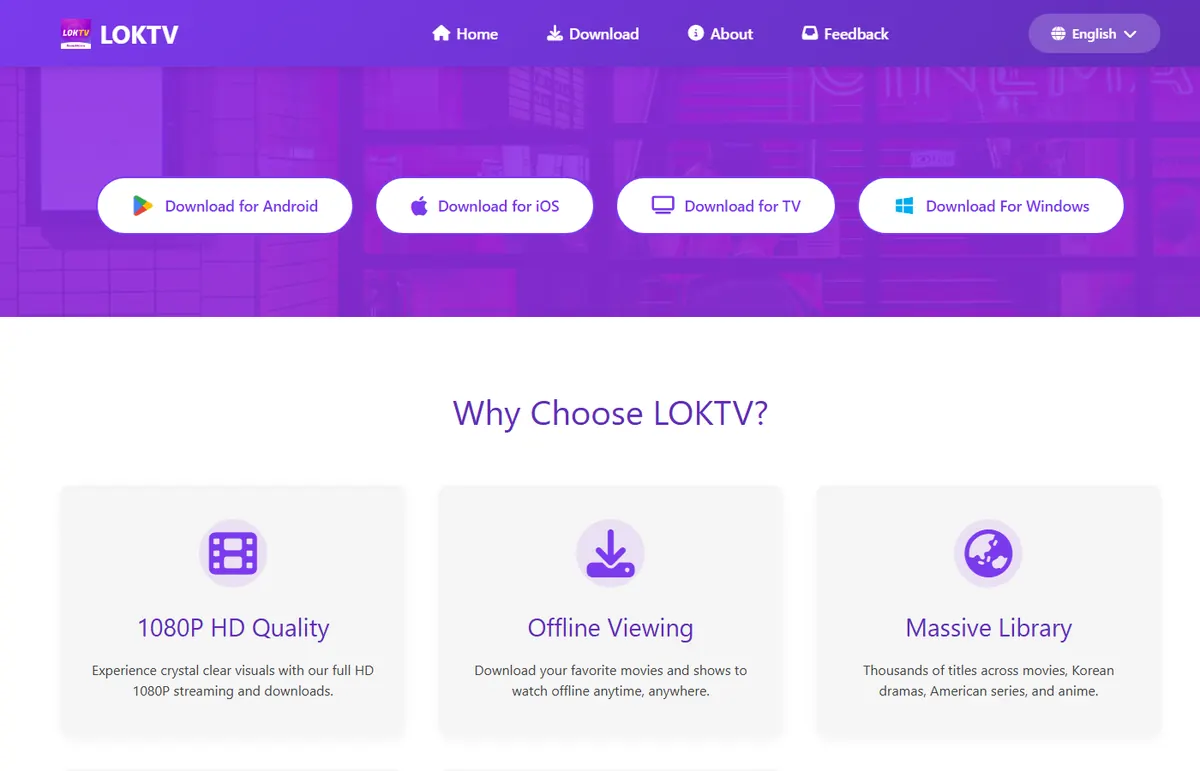
An official website can help you find the correct platform route, but a page called download, latest, or update is not by itself proof that a file is genuine. The LOKTV Website Guide explains how to separate the product site from unrelated lookalike pages. Keep the website check and the package check connected before you install.
A third-party APK labelled LOKTV update is a different risk category. It may be an older repack, a modified build, an HTML redirect, or a file with unrelated permissions. Treat the word latest as a claim to verify, not as evidence.
Practical rule
A current date is useful only when it belongs to a traceable app listing or release source. A filename, badge, or download counter cannot replace package and developer verification.
How to Check and Install the Current Update
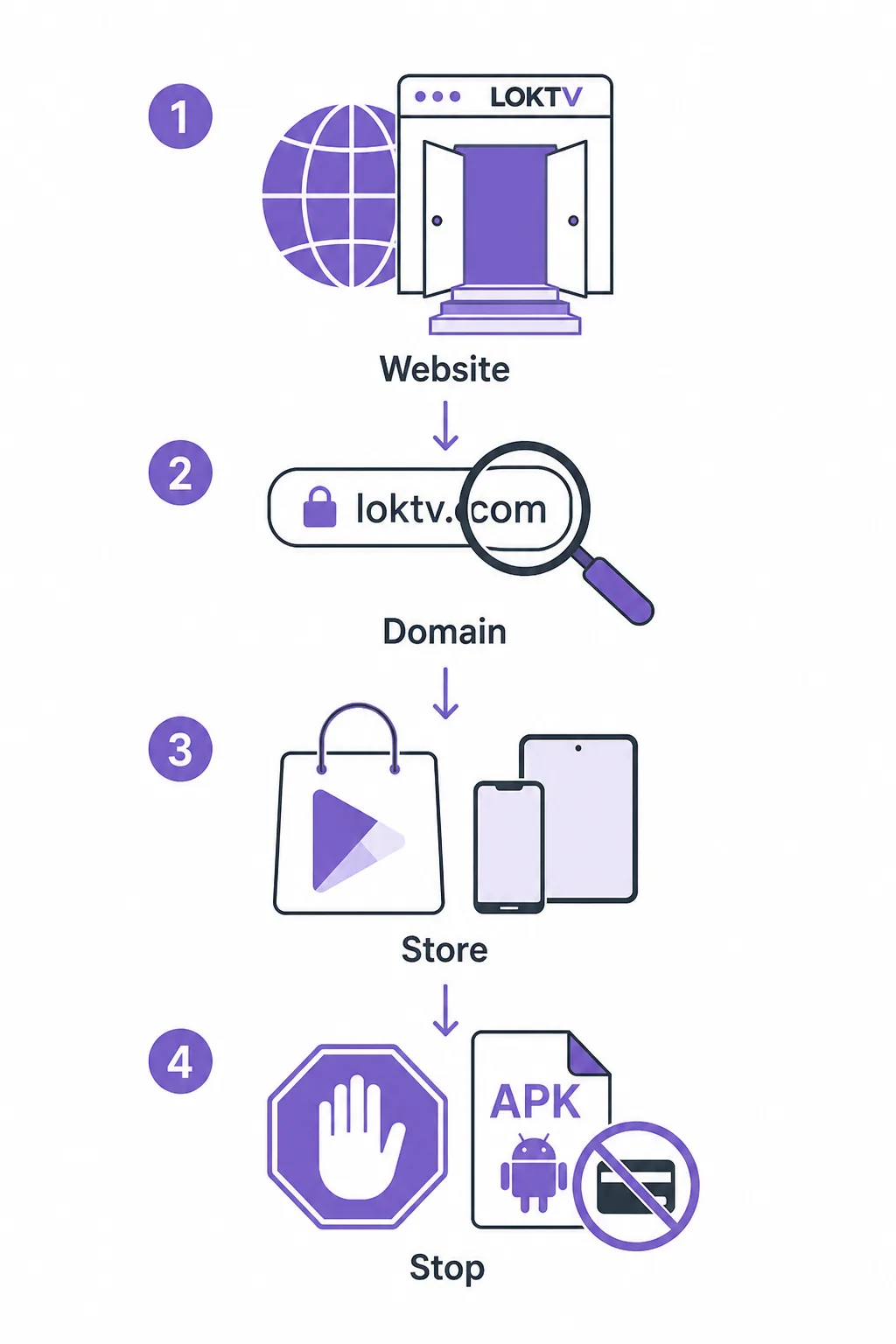
The safest workflow is short: identify the device, open the matching official route, compare the app identity, and install only when the information is consistent. Do not start by searching for a random APK mirror, because that changes a normal update question into a source-risk question.
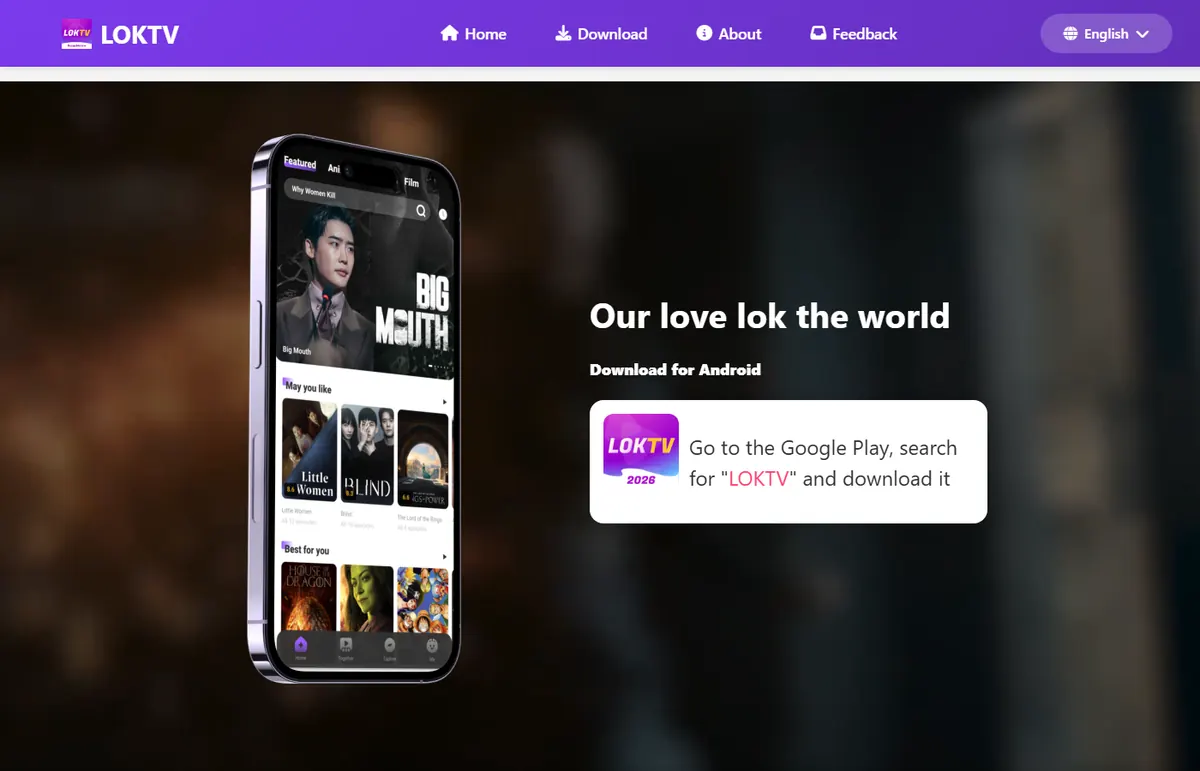
For Android phones and tablets, open the official LOKTV page or a currently reachable store route. Review the developer name, package identity, update date, permissions, and store warnings. If an Update button is available and the identity matches, use it from that listing. If no stable first-party route can be verified, do not replace the installation with a third-party file just because it says latest.
For Android TV or another Android-based TV device, use the TV store or the official TV route described in the Smart TV guide. A phone APK can install but still fail remote navigation, orientation, or playback checks. For Windows, follow the existing Windows guide and update the emulator or supported web route rather than forcing a phone APK onto a PC.
A simple update checklist
- Write down the device and the installed app identity before changing anything.
- Open the official store or source page and confirm the developer and package route.
- Compare the visible update date, permissions, compatibility notes, and source domain.
- Install the update from that route, then reopen the app and test sign-in, playback, subtitles, and downloads.
- If any field conflicts, stop and keep the existing installation until the source can be verified.
What to Compare Before Installing an Update
The package name is one of the most useful identity checks because app titles can be copied. Earlier Android source checks used package context com.luma.zeqorix and developer LOKTV DEV; recheck the currently reachable first-party route before treating those details as current. Use the package-name guide when a download page shows a different package, a shortened name, or no identity at all.
Next compare the date and release context. A store update date can tell you when the listing changed, but it does not create a universal version number if the store does not publish one. A third-party page that supplies a precise version and size without a source, signature, or matching package is not stronger evidence; it is an unverified claim.
Finally inspect requested permissions and the file delivery method. A direct APK should return an APK file with a verifiable MIME type and stable source metadata. If a supposed APK returns HTML, a countdown page, or a redirect that cannot be checked, do not rename it and do not install it.
| Check | What to compare | What a mismatch means |
|---|---|---|
| App identity | LOKTV name, package com.luma.zeqorix, developer LOKTV DEV | Treat the file as a different or unverified app |
| Update date | Store or first-party date with a traceable page | A date in a filename is not enough |
| File delivery | Store install or a verifiable APK response | HTML, countdown, or redirect is not an APK |
| Permissions | Permissions relevant to the app and device | Unrelated SMS, contacts, or accessibility access needs review |
| Device route | Android, Android TV, Windows, or web path | A phone build may not work on TV or PC |
Android, TV, and Windows Update Differences
Android phones and tablets normally receive updates through the app store. The important checks are listing identity, update date, permissions, storage, and whether the installed package matches the listing. If you use a manually installed APK, you take on extra responsibility for source, signature, file integrity, and rollback risk.
TV devices need an additional compatibility check. Android TV, Google TV, Fire TV, and TV boxes may support sideloading, while Samsung Tizen, LG webOS, Roku, and Apple TV do not install Android APK files directly. Read the Smart TV and Android TV guide instead of treating every Smart TV as an Android device.
Windows users should keep the update question tied to the method they actually use. If LOKTV or a related Android app runs through an emulator, the emulator and app may have separate update paths. The Windows PC guide covers setup and troubleshooting; this page only supplies the source and identity checks.
Do not mix device intents
An Android store update, a TV sideload, and a Windows emulator update can use different files and different controls. Link to the device guide that matches the user's setup.
If the app opens after updating
Test one title, subtitle selection, sign-in or QR pairing, and offline behavior. If playback or controls fail, record the device model and revert to the documented source route rather than trying several random builds.
When Not to Install a LOKTV Update
Stop when a page promises VIP unlocked, no ads, or a latest version but does not explain who published the file. Those phrases often describe a Mod APK rather than a normal update. Use the LOKTV Mod APK safety guide for that separate intent.
Stop when the download target is an HTML page disguised as an APK, has an unexplained temporary query string, asks for unrelated permissions, or uses a copied logo without a package and developer. Do not bypass the warning by changing the file extension.
Stop when you need an old build for compatibility but the source cannot prove its age or identity. The old-version guide explains why historical files need more checks, not fewer. Keep a backup of settings or watch history only when the app itself provides a safe export path.
A safe update can wait
If the source cannot answer what the file is, who published it, and which device it targets, waiting is safer than installing a file just because it uses the word update.
LOKTV Update Frequently Asked Questions
Related LOKTV Guides
- LOKTV APK package name and identity checks — Use it to compare com.luma.zeqorix, developer identity, and source details.
- LOKTV official website guide — Use it to separate the official route from lookalike or unrelated sites.
- LOKTV Mod APK safety guide — Use it when update wording includes VIP, unlocked, no ads, or modified files.
- LOKTV APK for Smart TV guide — Use it for Android TV, Fire TV, TV box, Tizen, or webOS compatibility.
- LOKTV Windows PC guide — Use it for emulator, PC setup, and Windows-specific troubleshooting.
- LOKTV 1.0.0 old-version guide — Use it when the search is specifically about a historical build.
Bottom Line
A useful LOKTV update check is an identity check, not a race to download the newest-looking filename. Start with the official store or source route, compare the package, developer, update date, permissions, and device path, and stop when a file cannot be verified.
For the Android route, use the official LOKTV page or a currently reachable store listing as the fallback, and verify app identity and update context together. Keep Mod APK, Smart TV, Windows, website, and old-version questions on their dedicated guides so each page answers one search intent clearly.