LOKTV Not Working? Troubleshoot Loading, Buffering and Playback
Use a symptom-first checklist to separate a title problem from a network, device, app, or service-side failure before reinstalling anything.
Quick answer: if LOKTV is not working, first note whether one title fails or every title fails, and whether the same symptom appears on another device or network. That small comparison prevents you from treating a service-side problem as an APK problem.
This page covers launch failures, endless loading, buffering, black screens, playback errors, and cross-device diagnosis. Use the Android guide, login guide, Smart TV guide, or update guide for those separate intents.
This troubleshooting guide separates app, network, device, title, and service-side symptoms. It recommends reversible checks and does not promise a latest APK or an unofficial repair file.
LOKTV troubleshooting guide
Why Is LOKTV Not Working? Start With the Symptom
Do not begin with a reinstall. Write down what you can see: the app will not open, the home screen is blank, a title keeps loading, the video stops after a few seconds, or an error appears after sign-in. Then compare one ordinary title with a second title. If only one title fails while menus and another title work, the issue may belong to that stream rather than to your device.
Next, compare scope. Try the same account on another trusted device, or try the affected device on a different connection such as mobile data. A failure that follows the account or title is different from a failure that stays on one phone, one TV, or one Wi-Fi network. Record the time, device model, app version shown in settings, and exact error wording before you change anything.
Fast branch
One title suggests a content or service path; every title on one device suggests local storage, app, or device state; every device on one network suggests the connection or service.
| What fails | Useful comparison | Most helpful next check |
|---|---|---|
| One title only | Play a second title | Note the title and retry later |
| Every title on one device | Try another device | Restart, check storage, and clear cache |
| Every device on one Wi-Fi | Try mobile data | Restart the router and test another app |
| App opens then closes | Open another app | Check storage, permissions, and device restart |
Fix LOKTV Buffering and Endless Loading
Buffering is a timing problem between the player and the stream, but the cause can be local Wi-Fi congestion, a weak signal, an overloaded router, a busy device, or the service path. Pause other large downloads, move closer to the access point, and test a second streaming app. If every service buffers, start with the network. If only LOKTV buffers while another service is stable, keep the LOKTV title, account, and service path in your notes.
Run one controlled comparison instead of changing several security controls. Close background video calls, reconnect the device to Wi-Fi, and restart the router only if other household users can tolerate the interruption. On mobile data, watch the data limit and signal indicator. A private DNS or VPN can change routing, but it is not a universal LOKTV fix and may introduce a new playback or login problem.
Keep the test reversible
Change one network variable, retest the same title for a minute, and restore the original setting if login, subtitles, or playback becomes worse.
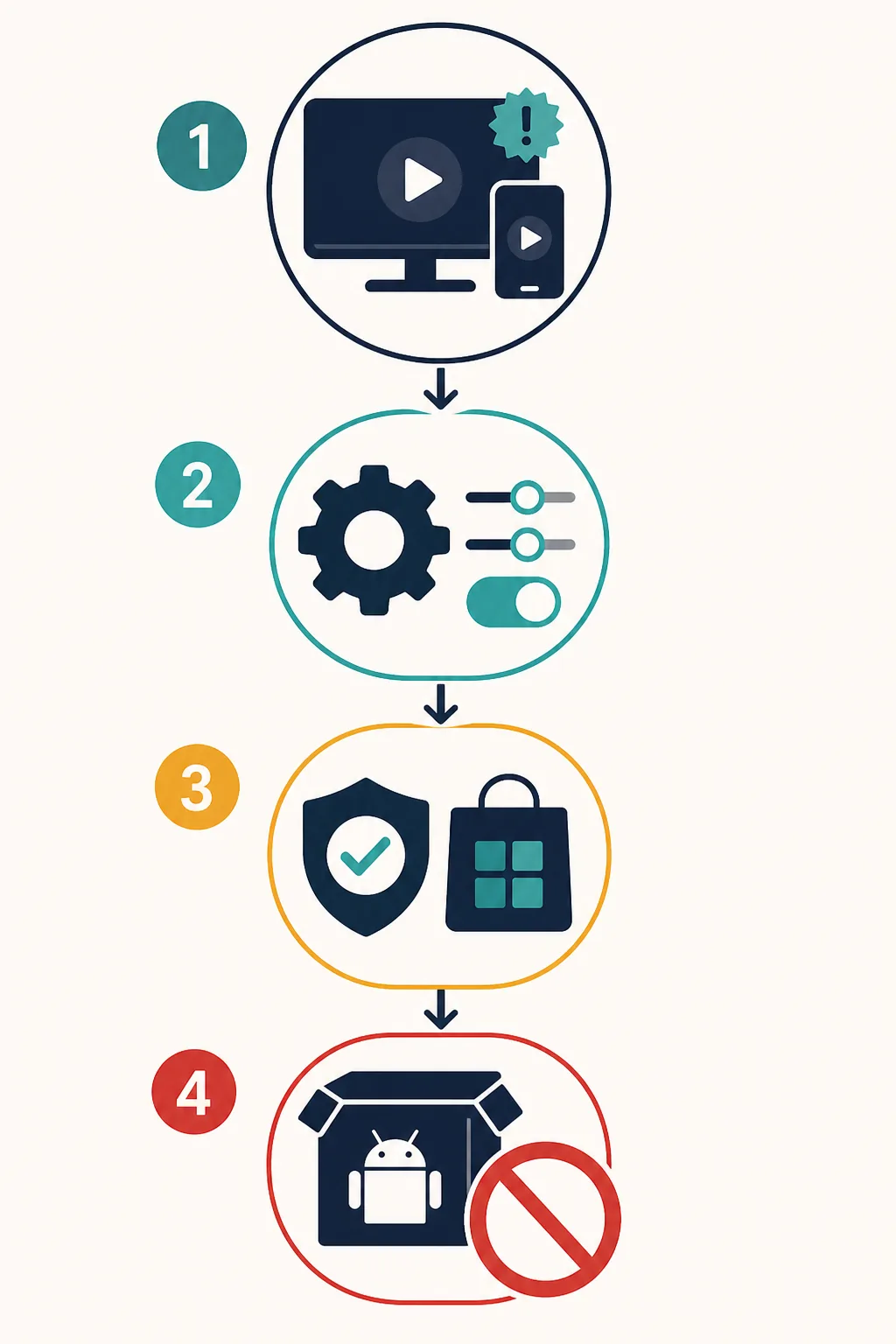
A short buffering checklist
- Play a second title and note whether the same loading point appears.
- Test another streaming app on the same device and Wi-Fi.
- Pause large downloads, reconnect Wi-Fi, and check the device signal.
- Try one brief mobile-data comparison when it is safe for your plan.
- Restore DNS, VPN, or filter settings if they create a new error or missing subtitle.
LOKTV Opens to a Black Screen, Crashes, or Will Not Launch
A black screen can be a rendering, storage, permission, or temporary app-state issue. Force-close LOKTV once, reopen it, and restart the device if the screen remains blank. Do not repeatedly tap a frozen button or install a second package over the first one. If the app shows a message about storage, make space before changing account data.
On Android, check the app's visible permissions and free storage, then clear cache rather than data. Cache removal is a reversible maintenance step; clearing data can sign you out, remove local settings, and affect offline files. The Android installation guide covers package and permission checks when the problem began after a new install.
Cache before data
Clear temporary cache first. Treat Clear storage, uninstall, and package replacement as separate actions with different account and offline-content effects.
| Symptom | Low-risk first step | Avoid until you have a reason |
|---|---|---|
| Black screen | Force stop, reopen, and check storage | Installing a second APK |
| Instant crash | Restart and compare another app | Repeated launches with no notes |
| Sign-in loop | Use the login guide and check time/date | Sharing credentials with a mirror |
Troubleshoot LOKTV Playback by Device
Phones and tablets usually expose the clearest app controls: storage, cache, permissions, network choice, and a visible app identity. Use those controls without changing several at once. Android TV and Fire TV add remote navigation, display output, and TV-store compatibility; an APK that installs on a phone may still be a poor TV build. Use the Smart TV guide for those platform boundaries.
Samsung Tizen, LG webOS, Roku, and Apple TV do not install ordinary Android APK files directly. If a page tells you to sideload a phone file to one of those systems as a playback fix, stop and verify the platform route first. A TV black screen can be a compatibility or display-output issue rather than a missing APK.
Match the platform
Phone, Android TV, browser, emulator, Tizen, and webOS have different package and playback boundaries. A fix for one platform is not evidence for another.
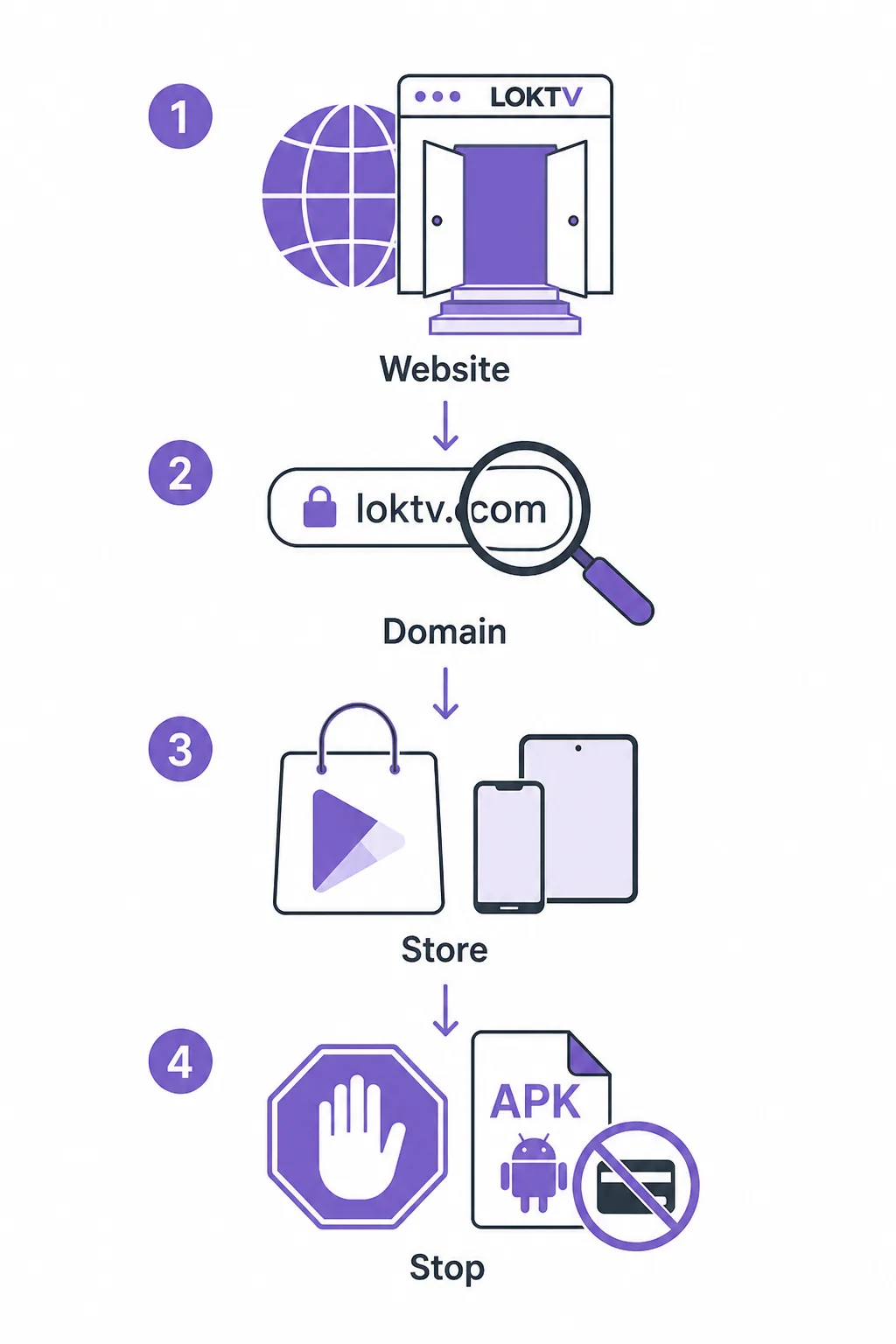
What to record for a useful report
Record the device, system, affected title, connection, exact error, and start time. Do not include passwords, payment details, QR codes, or private account screenshots.
When the Problem May Be Service-Side
A service-side problem becomes more plausible when the same title or playback error appears on more than one trusted device and more than one connection. It is also plausible when menus load but streams fail, several unrelated titles stop at once, or a known route changes without a device change. These signs do not prove an outage, but they tell you to pause before replacing a working installation.
Retest after a short interval with the same and a second title. If it disappears, note the time and avoid unnecessary changes. If it persists, keep the error wording, scope, device, network, and reproducibility.
Wait before escalating
If the failure follows multiple devices and networks, a short retest is often more informative than a hurried reinstall.
| Evidence | What it suggests | Next action |
|---|---|---|
| One title fails everywhere | Title or stream path | Record the title and retest later |
| All titles fail on one Wi-Fi | Network or route | Compare mobile data and another app |
| All devices fail on two networks | Service-side possibility | Wait, document, and use a verified support route |
What Not to Do When LOKTV Stops Working
Do not install a Mod APK, a renamed file, or a package from a page that promises instant buffering fixes, VIP access, or unlocked playback. A different signing key, changed code, unrelated permissions, or a broken update path can create a bigger problem than the original error. The Mod APK safety guide and safety guide cover source, package, and permission checks separately.
Do not disable Android security controls, grant accessibility or device-administrator access, or enter your main password into a page reached through a redirect. Do not delete app data before you understand the sign-in and offline consequences. If you already used an unknown package, stop playback, uninstall it when safe, review permissions, and change credentials that were entered there.
A safe fix can wait
When a proposed repair cannot explain its source, package, permissions, and target platform, keep the original installation and verify the route first.
Stop signs
- The page hides the publisher or package identity.
- The download is an HTML redirect, countdown, or temporary link rather than a verifiable file.
- The installer requests unrelated SMS, contacts, accessibility, or administrator access.
- The promised fix requires disabling protections or sharing account credentials.
LOKTV Not Working FAQ
Related LOKTV guides
- LOKTV Android APK guide — Use it for package, permission, and installation-path checks.
- LOKTV login guide — Use it when the failure is an account, code, or sign-in problem.
- LOKTV Smart TV guide — Use it for Android TV, Fire TV, remote, and TV compatibility questions.
- LOKTV update guide — Use it to verify source, package, developer, and update claims.
- LOKTV website guide — Use it to distinguish the verified product route from redirects and lookalike hosts.
Bottom Line: Diagnose the Failing Layer
When LOKTV is not working, compare the title, device, account, and network before changing the installation. A short, reversible checklist often tells you whether the issue is local or service-side without risking your account or offline data.